
IPTV on Multiple TVs: How to Cover Every Screen at Home
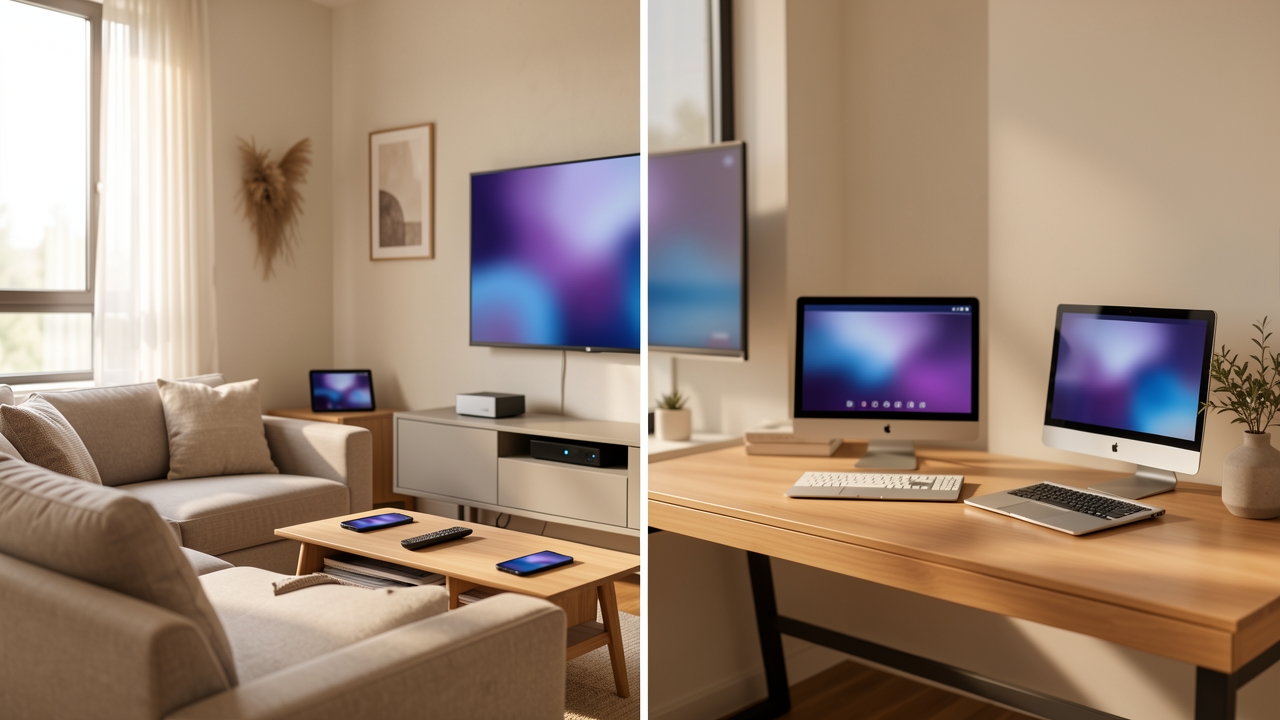
One IPTV subscription covers one connection, which means one screen playing at a time. If two people in your household want to watch different things in the evening, you need a second connection — either an extra subscription or a lifetime plan that covers more devices. This guide explains how IPTV on multiple TVs actually works, how many connections your home needs, and how to set up each screen without constant clashes.
What one connection really means
Every standard subscription — 1 month, 3 months, 6 months, 12 months or 24 months — includes one connection. Your login details are not welded to a single device, but only one stream can run at a time. If someone opens the app on a tablet while the TV is playing, one of the two sessions will stop working.
That is the whole issue in a nutshell. A household with one TV and one viewer is fine on a single subscription. A household where a parent watches sport in the living room while a teenager watches a series upstairs needs two connections, and a family of four watching different things on a busy Sunday needs more.
The good news is that you do not have to guess. Once you know your household’s peak viewing pattern, the maths is simple, and the setup on each screen is exactly the same as it is for one TV.
Count simultaneous viewers, not devices
The mistake most people make is counting the devices in the house — the living room TV, the bedroom TV, two phones, a tablet and a laptop. That number is irrelevant. What matters is how many of those devices are playing at the same moment.
Before you order anything, answer these questions honestly:
- How many people watch at the same time? Not how many live in the house — how many watch in the same hour.
- When is your peak? Most households have one busy window in the evening plus a busy weekend afternoon.
- Does anyone watch in a different room? A second TV in a bedroom or kitchen usually means a second simultaneous stream.
- Do phones and tablets count? Yes, if someone is watching on one while the TV is on.
Two simultaneous streams covers the majority of homes: one main TV plus one other screen. Three covers a family where each person wants their own content. If your household only ever watches together in the living room, one connection is genuinely enough — and you can move that single login between devices whenever you like.
How to set up IPTV on multiple TVs at the same time
Once you know how many connections you need, the rest is routine. Each connection gets its own login details and is set up independently, so the screens do not interfere with each other.
- Work out your peak number of screens. Use the questions above. Round up rather than down — it is easier to have a spare connection than to add one at 8pm on a Saturday.
- Choose your option. Extra monthly or yearly subscriptions if you prefer flexibility, or a lifetime plan that covers 2, 3, 4 or 5 devices in a single payment. See the options in the comparison table below.
- Order and confirm the number of connections on WhatsApp. Message +1 (701) 890-2743 and say clearly how many screens you want to run at the same time. Ordering, trial requests and setup help all go through the same channel, 24/7.
- Set up the first screen. On a Smart TV, Fire TV Stick or Android box you use an IPTV player app and enter either your M3U playlist link or your Xtream Codes username, password and server address. On a MAG box you use the portal URL instead.
- Repeat on each additional screen with its own login. Do not copy the same username onto two devices and expect both to play — use the second set of credentials you were sent.
- Label everything. Save each login under a room name in your notes app: living room, bedroom, kitchen tablet. When something needs changing later, you will know which login is which.
- Test at peak time. Run all your screens at once in the evening, not at midday, so you find any weak Wi-Fi spots before the big match or the family film night.
If you are setting up a Fire TV Stick for the first time, the general steps are the same as any other device: install the player app, choose the playlist or Xtream login option, paste your details and let the channel list load. Setup steps and login details arrive on WhatsApp after you order, so you always have the exact format to copy.
Comparing your options for a multi-screen household
Here is how the choices look when you need more than one screen running at once. Prices are in euros.
| Option | Screens playing at the same time | Price |
|---|---|---|
| 1-month subscription | 1 | €10.99 |
| 12-month subscription | 1 | €59.99 |
| Two 12-month subscriptions | 2 | €59.99 each |
| Lifetime plan, 2 devices | 2 | €416 one payment |
| Lifetime plan, 3 devices | 3 | €543 one payment |
| Lifetime plan, 5 devices | 5 | €797 one payment |
The rule of thumb: if you are testing the service or only need a second screen occasionally, extra monthly subscriptions are the low-risk route. If you already know you will keep several screens running for years, the multi-device lifetime plans spread the cost over a much longer period. All plans include the same 25,000+ live channels and 26,000+ movies and series, in HD and Full HD with 4K where the source provides it.
Sharing one login between rooms instead of buying more
Plenty of households do not actually need two streams — they need one login that follows them around the house. That works well, as long as you close the stream properly before opening it somewhere else.
- Stop playback, do not just press home. Many player apps keep the stream running in the background when you leave the app, which blocks the next device.
- Force close the app on the device you have finished with if the second device says the connection is in use.
- Wait a few seconds before starting the second device, so the first session has time to drop.
- Keep one login per device if you switch daily — constant back-and-forth is the point where most people give up and add a connection.
This approach is ideal for a couple who mostly watch together and occasionally take a tablet to bed. It is a poor fit for a house where two people routinely want different things at 8pm.
Picture quality when several screens are running
Multiple streams share the same internet connection, and the weakest link is almost always Wi-Fi rather than the subscription itself. A few practical habits keep all your screens stable:
- Wire the main TV if you can. An Ethernet cable to the living room TV removes the biggest variable, especially for 4K content.
- Use the 5 GHz band for TVs and boxes close to the router, and leave 2.4 GHz for phones and tablets further away.
- Do not stack several 4K streams on a weak signal. If one screen stutters while others are playing, drop that device to HD first and see if the problem disappears.
- Restart the router occasionally. It sounds trivial, but a router that has been running for months is a common cause of evening buffering across every screen at once.
If one screen buffers and the others are fine, the problem is that device or its Wi-Fi, not your connection count. If everything degrades at the same time, look at the router or your broadband before changing any settings in the app.
Keeping a multi-screen household organised
Once you have two or three connections running, small bits of housekeeping save a lot of time. Keep all logins in one note, labelled by room, and keep the WhatsApp thread with support — it holds your order and your setup details in one place.
Also agree on the practical stuff early: who uses which screen, and whether anyone is allowed to install the app on a phone without asking. Most conflicts come from someone opening a second stream on a device nobody remembered was logged in. A shared note and a quick family rule solve it faster than any technical fix.
Finally, if you add a screen later — a new TV, a Fire TV Stick for the kitchen, a tablet for travelling — you can add a connection at any point. Message support on WhatsApp with your existing details and say what you want to add.
Frequently asked questions about IPTV on multiple TVs
Can I use one IPTV subscription on two TVs at the same time?
No. Each standard subscription includes one connection, which allows one stream at a time. To watch two TVs simultaneously you need a second connection — either a separate subscription or a lifetime plan that covers two or more devices.
Does the same login work on my phone and my TV?
Yes, you can install the app on several devices with the same details, but only one can play at a time. If you move between devices regularly, close the stream completely on the first device before starting the second.
How many screens can a lifetime plan cover?
Lifetime plans are available for 1, 2, 3, 4 or 5 devices, paid once. The number of devices on the plan is the number of screens you can run at the same time, so a household with three regular viewers should look at the 3-device option.
Can I add another connection later?
Yes. You can add a subscription or move to a larger lifetime plan whenever your household needs more screens. Support on WhatsApp can tell you exactly what to order based on what you already have.
Why does one screen stop when someone else starts watching?
That is the one-connection limit working as intended. Two devices are trying to use the same stream slot. Give the second device its own login, or close the first stream properly before starting the second.
Sort out your screens before the next film night
Plan by simultaneous viewers, not by the number of devices in the house, and IPTV on multiple TVs becomes simple: one connection per screen playing at the same time, each with its own login, all set up the same way. Start with a single month if you want to test the service on one TV first, or go straight to a multi-device lifetime plan if the whole household is switching over.
Ready to cover every screen? Check the full IPTV pricing and plans, compare the most popular 12-month plan with the 1-month plan for a first test, and message us on WhatsApp at +1 (701) 890-2743 to confirm how many connections you need. You can also contact the team for setup help at any time, day or night.