
Set Up IPTV on Fire TV Stick With Xtream Codes
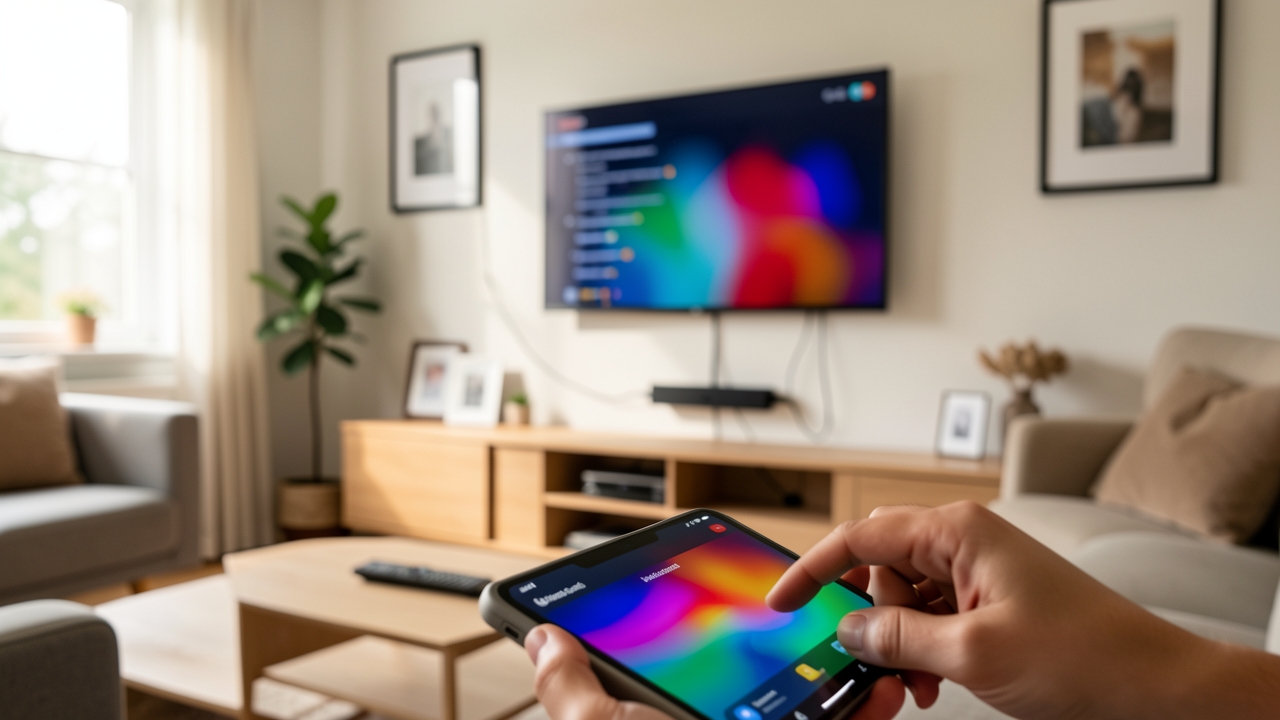
To set up IPTV on a Fire TV Stick with Xtream Codes, install an IPTV player app, open its Xtream Codes login screen and enter the server address, username and password supplied by your provider. It takes about ten minutes, needs no computer, and once it is done your live channels, movies and series all sit behind one icon on your TV.
Below are the exact steps, which player to choose, how to fix a failed login or a stuttering stream, and how to pick a plan that matches the number of TVs in your house.
Before you start: what you need
- A Fire TV Stick of any generation, plugged into an HDMI port and connected to your Wi-Fi. A 4K or 4K Max model is worth having if your TV is 4K.
- Your login details: for Xtream Codes that means a server address (a hostname or IP, sometimes followed by a port), a username and a password. Channels IPTV sends these on WhatsApp after you order.
- The Fire TV remote, plus your Amazon account details if the Stick asks you to register or sign in.
- A stable connection. Around 10 Mbps is comfortable for HD, and you want extra headroom for 4K streams.
How to install IPTV on Fire TV Stick with Xtream Codes
The order below matches current Fire OS versions. Menu labels move slightly between models and updates, but the sequence stays the same.
- Connect the Stick. Plug it into the TV, select the right HDMI input and join your Wi-Fi network in Settings.
- Install an IPTV player. Open the Appstore on the Fire TV Stick, search for an IPTV player and install one that supports Xtream Codes. If your preferred player is not in the Amazon store, install the Downloader app and use it to fetch the player from the developer’s own website.
- Allow installs from unknown sources (sideloading only). Go to Settings, open My Fire TV (called Device on some versions) and find Developer Options. There, switch on install permissions for Downloader. If Developer Options is hidden, open About and select your Fire TV model several times to unlock it.
- Open the player and choose the Xtream Codes option. Most apps open on a login screen with buttons or tabs for Xtream Codes, M3U URL and sometimes a MAC portal. Pick Xtream Codes.
- Type your details. Give the profile any name you like, then enter the server address exactly as sent, including http:// and any port number, followed by the username and password. Capitals matter and a stray space at the end of a field is the most common cause of a failed login.
- Wait for the first import. A large library can take from a few seconds to a couple of minutes to load. Leave the app alone until it finishes.
- Test all three sections. Open a live channel, then a film and an episode, and check that picture and sound both work.
- Make it yours. Add favourite channels, confirm the EPG has filled in (Xtream Codes usually pulls the guide automatically) and set the app to open on the channel list if that is what you watch most.
Keep in mind that a standard subscription is one connection, which means one device streaming at a time. It works fine on a single Fire TV Stick in the living room; for two TVs running at once, look at a lifetime plan that covers two devices.
Which IPTV player should you use on a Fire TV Stick?
There are two routes: a player from the Amazon Appstore, or a player sideloaded through Downloader. Players commonly used on Fire TV Stick include IPTV Smarters, TiviMate and XCIPTV — all three accept Xtream Codes logins, though their menus and settings differ.
| Option | Where it comes from | Advantages | Trade-offs |
|---|---|---|---|
| Appstore player | Amazon Appstore | Fast to install, updates arrive automatically | Smaller selection, fewer advanced settings |
| Sideloaded player | Developer’s website via Downloader | More features, such as detailed EPG control, favourites and custom layouts | Extra setup step, updates are manual |
| MAC portal player | Appstore or sideload | Familiar to people coming from a set-top box | Clunky on a remote, and Xtream Codes is the better fit for a Stick |
If you are new to IPTV, start with an Appstore player and get the login working. Once everything plays, you can move to a more feature-rich player later without losing your subscription.
Xtream Codes, M3U or MAG on a Fire TV Stick
Your subscription supports three connection formats, and they are not equally good on a Fire TV Stick.
| Format | What you enter | Best for | Notes |
|---|---|---|---|
| Xtream Codes | Server address, username, password | Fire TV Stick, phones, most apps | Guide data loads automatically and channel updates are picked up without retyping anything |
| M3U playlist link | One long URL | Apps that do not accept Xtream Codes | Works everywhere, but the EPG often needs a separate address and you may have to paste the link again after changes |
| MAG portal | Portal address on a MAG box | MAG set-top boxes | Not the right choice for a Fire TV Stick |
Troubleshooting the most common Fire TV Stick problems
- “Invalid credentials” or the login will not save. Re-enter the server address without a trailing slash, then check the port number and the exact spelling of the username. If the hostname fails, try the IP address from the same message, or the other way round.
- The playlist loads but nothing plays. Force-close the player, reopen it and try a different channel. If one stream fails and the rest work, it is that stream, not your setup.
- Buffering on live channels. Switch the Stick to the 5 GHz Wi-Fi band if your router broadcasts one, move the Stick away from other devices crowding the router, or use a compatible Ethernet adapter. Restart the Stick from Settings, then My Fire TV, then Restart.
- Audio out of sync. Change the audio output setting in the Fire TV sound menu, or turn off surround sound in the player and test again.
- The app freezes or closes. Clear the app cache, check free storage, and reinstall the player as a last step. Your Xtream Codes login simply goes back in.
- No 4K picture. You need a 4K Stick, a 4K TV, an HDMI port that supports it and a 4K source. Check the display setting is on automatic or 4K, because HD and Full HD are what most channels deliver, with 4K where the source provides it.
- Typing is slow with the remote. Use the Fire TV app on your phone as a keyboard for the login step — it saves several minutes of arrow-key tapping.
Choosing a plan for your Fire TV Stick
All subscriptions cover one connection and include the full 25,000+ live TV channels and 26,000+ movies and series library. Pick the length that matches how confident you are after the first evening.
| Plan | Price | Best for |
|---|---|---|
| 1 month | €10.99 | Testing the service on your Stick |
| 3 months | €25.99 | A short trial over a season |
| 6 months | €39.99 | Half-year commitment at a lower monthly rate |
| 12 months | €59.99 | Most popular, best balance of price and flexibility |
| 24 months | €99.99 | Lowest monthly cost, set up once and forget it |
Lifetime plans are a single payment: €289 for one device, €416 for two, €543 for three, €670 for four and €797 for five. That is the sensible route if you want a Stick in the living room and another in a bedroom without renewing each year. Full details of every option are on the pricing page.
Not sure yet? The 1-month plan is the cheapest way to check picture quality on your own Wi-Fi, and the 12-month plan is what most households settle on afterwards.
Frequently asked questions
Does IPTV work on every Fire TV Stick model?
Yes. The first-generation Stick and every model since can run an IPTV player and play HD and Full HD streams. Older Sticks are slower to navigate, and 4K only works on a 4K or 4K Max Stick paired with a 4K TV and a 4K source.
Do I need to jailbreak my Fire TV Stick?
No. You can install an IPTV player straight from the Amazon Appstore. Sideloading through Downloader is optional and only useful if you want a specific player that the Amazon store does not list.
Why does IPTV keep buffering on my Fire TV Stick?
Almost always Wi-Fi. Try the 5 GHz band, move the Stick away from a crowded router, close background apps and restart the Stick. If other devices stream fine and only one channel stutters, the issue is with that stream rather than your connection.
Can I use one subscription on two Fire TV Sticks?
A standard subscription is one connection, so one device streams at a time. If you need two Sticks playing simultaneously, choose a lifetime plan that covers two devices, or ask the team which option fits your setup.
How do I get my Xtream Codes login details?
Message the team on WhatsApp at +44 7956 154482, available 24/7. After you order, the login details and the setup steps for your device are sent to you on WhatsApp, and the same number handles any setup question you hit later.
Get your Fire TV Stick running tonight
Once the player is installed and the Xtream Codes details are in, a Fire TV Stick becomes a complete TV box: live channels, a film library and a series library, navigated with the remote you already know. Most problems along the way come down to a typo in the login fields or weak Wi-Fi, and both are quick to solve.
Ready to start? Compare the plans on the Channels IPTV pricing page, then send your order or a free trial request on WhatsApp. If you would rather have someone walk you through the install step by step, use the contact page and the team will take it from there.